
Making A Custom Floating Scriptable Button Panel Using A Mac Accessibility Feature
Jeremy White at WIRED posted a handy tip the other day. iOS contains an Accessibility feature that replaces the iPhone’s stock Springboard launcher with a simple grid of big app icons. Assistive Access was introduced in iOS 17. It strips out widgets and custom icon layouts in favor of a clean dashboard that’s nostalgically reminiscent of one of the later iPod Nanos:
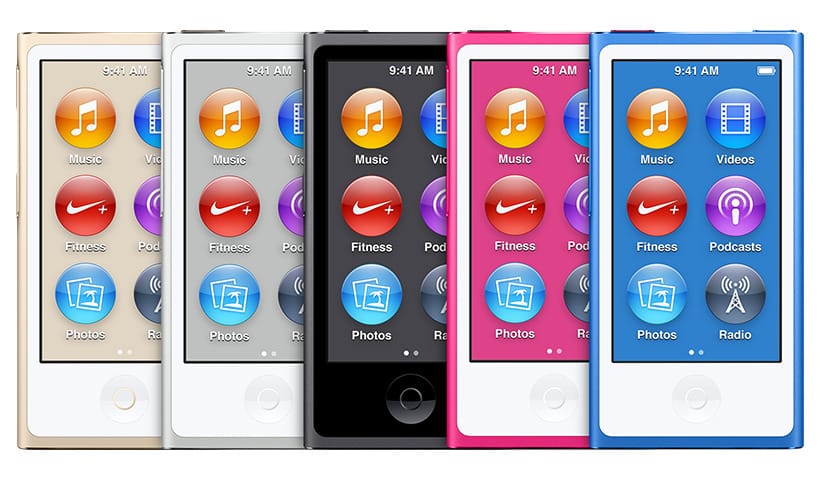
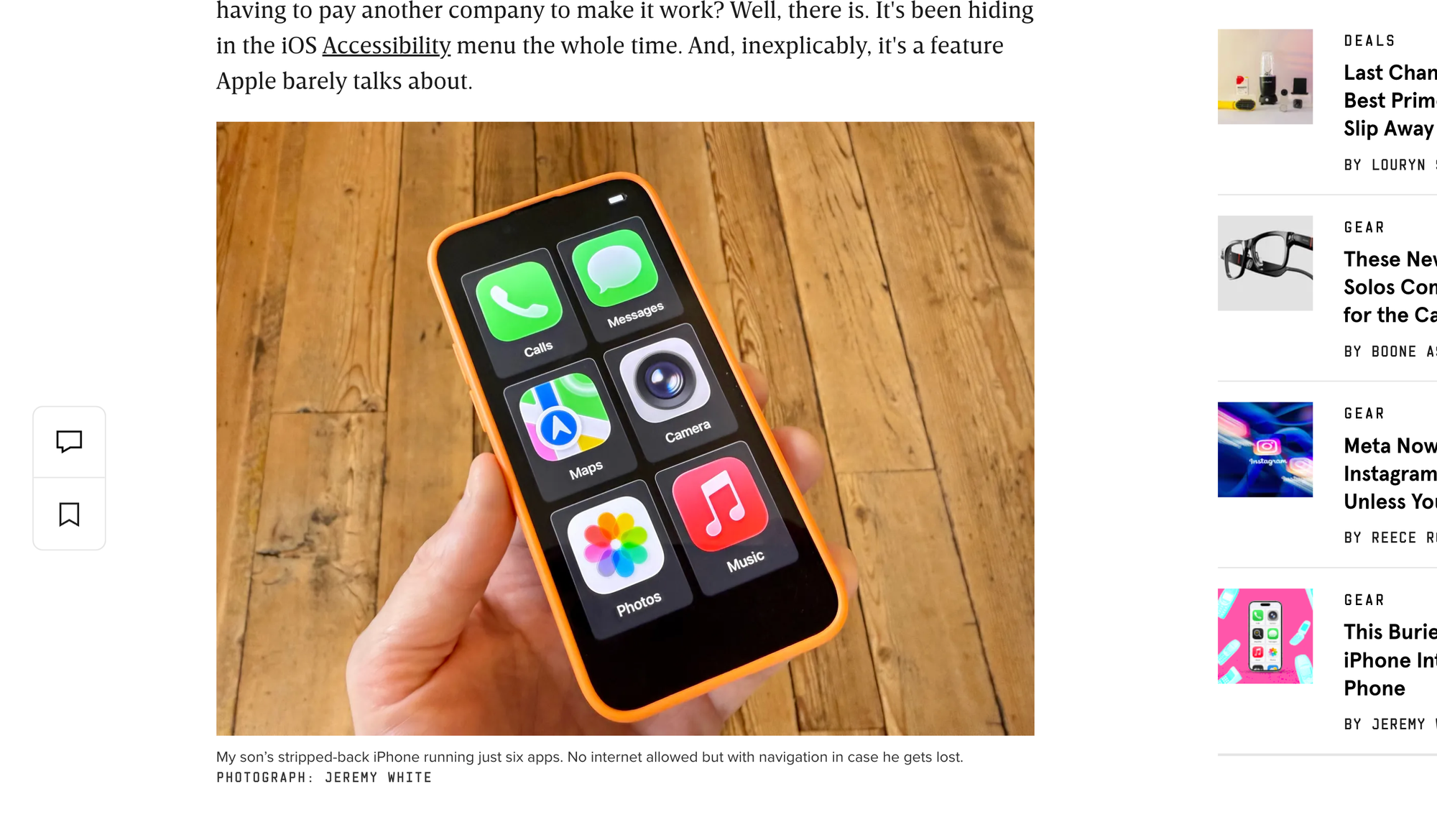
The design purpose of Assistive Access is to reduce the amount of cognitive friction of the stock iOS interface, for people with certain kinds of disabilities. But as Jeremy points out, it’s useful for further restricting a kid’s iPhone to just a set of parent/guardian-approved apps, or giving a somewhat hidebound elderly parent the power of a modern smartphone balanced with the simplicity of an early-2000s featurephone.
Go check out the article…it’s a good’n.
And you should spend some time digging through Accessibility features: you’ll often find something super-handy in there.
My weekly roundups of Apple news are a case in point. I started assembling these things two or three years ago as part of the show prep for MacBreak Weekly. The workflow is an obvious opportunity for automation: I perform the same sequence of operations for each of dozens of stories, and then the same sequence of operations to turn the final list into something I can paste into the MacBreak show doc and then (after a lot more work adding commentary) a different something that I can paste into a blog post.
Well, the gratifying part of any longterm scripting/programming project comes after you’ve knocked all of the mission-critical stuff off of the To-Do list. After you’ve used the new tool for a few weeks, you’ll identify something that, well, could be a teensy bit easier. And somehow, identifying and eliminating that one tiny rattle is almost as satisfying as the whole rest of the project.
With this script, the tiny rattle came in the form of how to trigger the AppleScript. The master list is an OmniOutliner outline. To add a new story, I highlight the title in Chrome and select the script from the AppleScript menu. The script collects the URL, makes OmniOutliner the frontmost app, copies both items into a new row, pauses there long enough for me to confirm that the script did its job, and then moves back to Chrome.
The trigger was only two mouse clicks. But I suspected that I could get that down to just one with a floating button bound to the script.
The commercial king of this sort of thing is Andreas Hegenberg’s BetterTouchTool. It empowers you to bind damn-near any kind of action to damn-near any kind of input. A floating toolbar? Sure, but think bigger: keyboard shortcuts, multitouch trackpad gestures, those freaky extra buttons on your third-party mouse that you’re not using, AI chatbots…jeez, if you’ve got an old Mac with a touchbar, Better Touch Tool cares far more about making it a useful thing integrated into the Mac experience than Apple ever did.
Just fifteen damn dollars! With a free trial period.
I heartily recommend that you give it a go. It would be a staple on all of my Macs, if I weren’t slightly allergic to these types of third-party efficiency tools. My partially rational fear is that the tool will rewire my brain to such a degree that it becomes hard to get by without these custom shortcuts.
Plus, (1) I’m a cheapskate, whoops, I mean “sensibly frugal, as befits a freelance journalist in a rapidly collapsing industry,” and (2) it behooves me as a tech pundit to keep testing the capabilities of a stock OS.
MacOS has a built-in feature for building floating button palettes. It’s part of Apple’s Accessibility Keyboard.
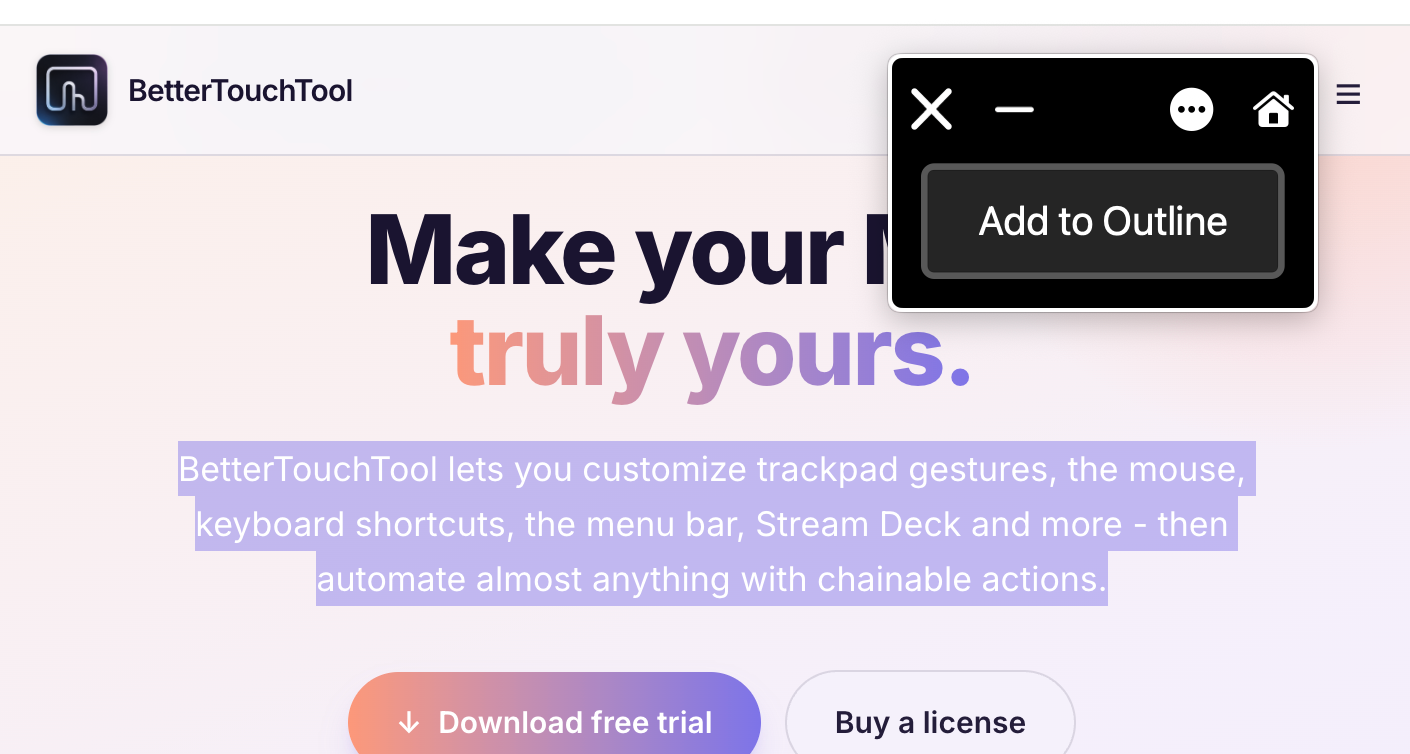
I’ll demo this by building a Winter Morning version of the single-button version I normally use.
(This is based on MacOS Tahoe/MacOS 26)
In System Settings, go to Keyboard. Scroll down to “Text Input,” Click the “Edit” button, and activate “Show input menu in menubar.”
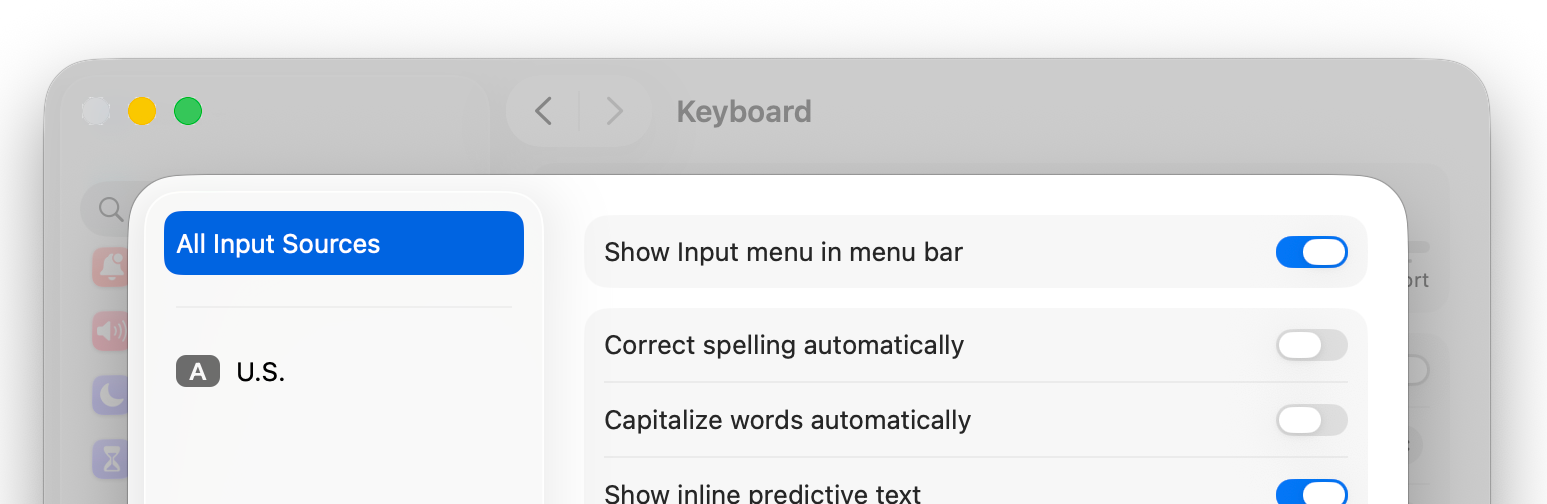
This will add a keyboard menu to the menubar. It’s a handy thing in and of itself. It can show and hide an interactive onscreen keyboard.
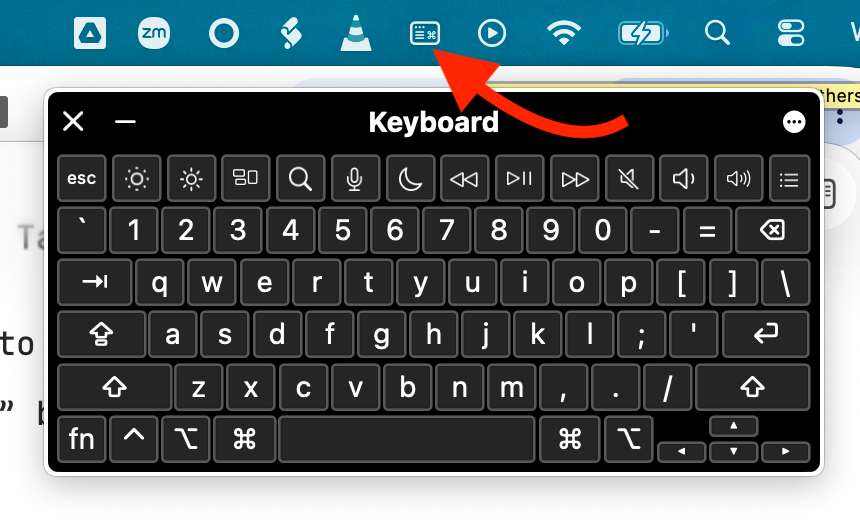
Whenever I need to type an obscure character and I can’t remember how to type it, I open the keyboard viewer and keep holding down combinations of Option, Shift, and Command until the symbol I want is revealed, and then I click it. You can generate any character, from alpha to Ω, and every †§¶© in between.
To add a new custom keyboard panel, open the dropdown menu at the upper-right corner of the Keyboard and select “Customize.”
This opens an app called “Panel Editor.”
Click the “Add Panel” button at the top. A dropdown menu will show you some pre-fabbed templates.
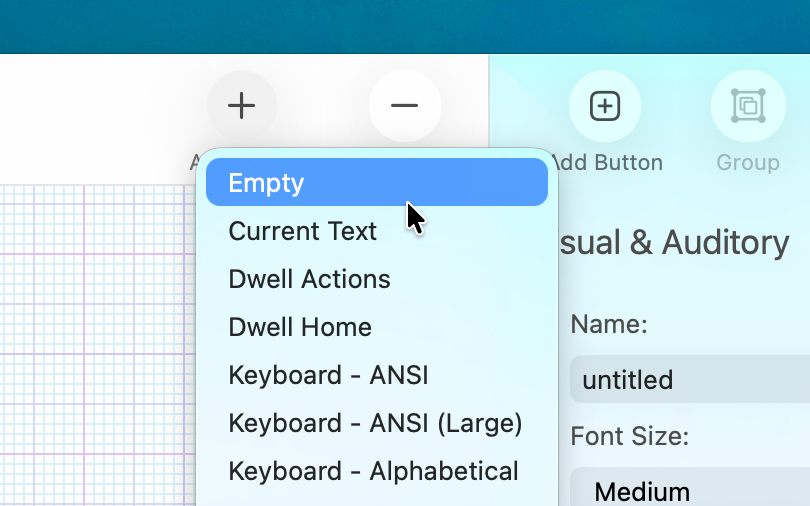
Choose “Empty” to start from scratch with a minimalist input panel like my one-button “Add to Outline” one. I've decided that my expanded “Winter Morning” version needs a full onscreen keyboard, plus a couple of extra function buttons.
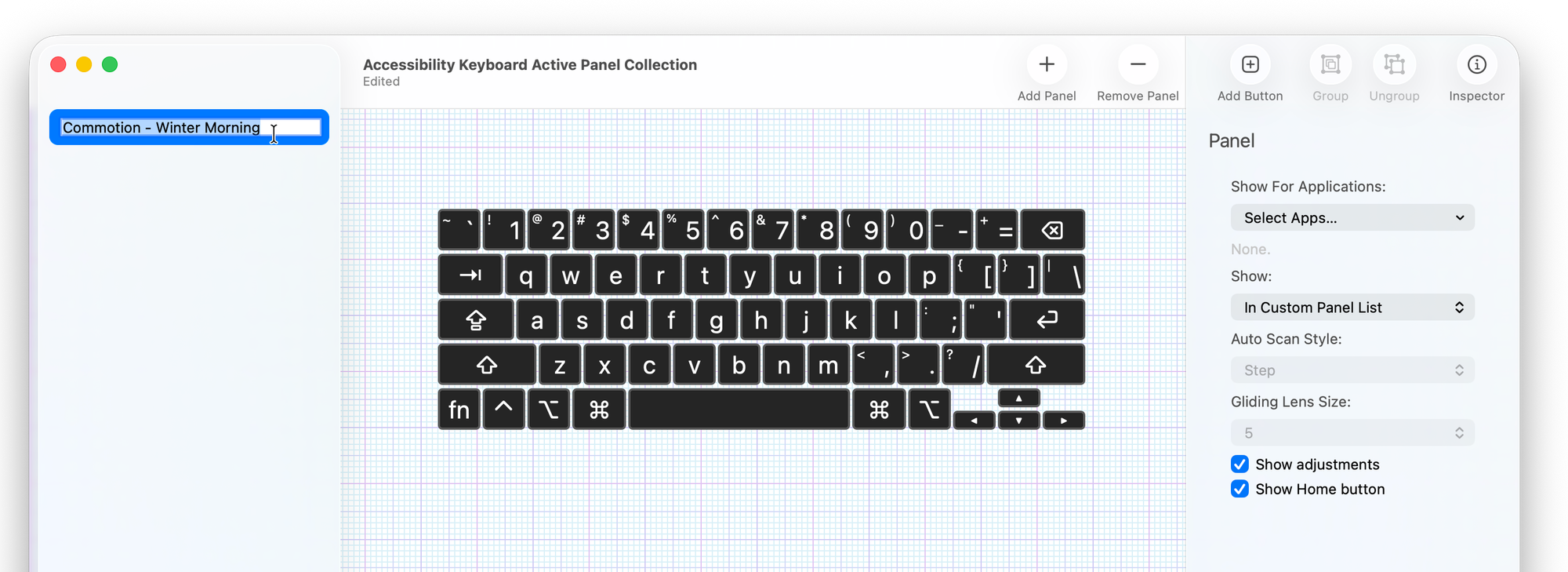
Give the new panel a name by clicking once on the default name in the left-hand column and typing whatever.
There already seems to be plenty of space at the top for my task-specific buttons. But you can move the keyboard anywhere you like.
Add a button
Click the “Add Button” button. Panel Editor will drop a new, Untitled button in the middle of the window. Drag it to where you’d like it to go and resize it however you like.
Edit its name and appearance using the Inspector panel on the right.
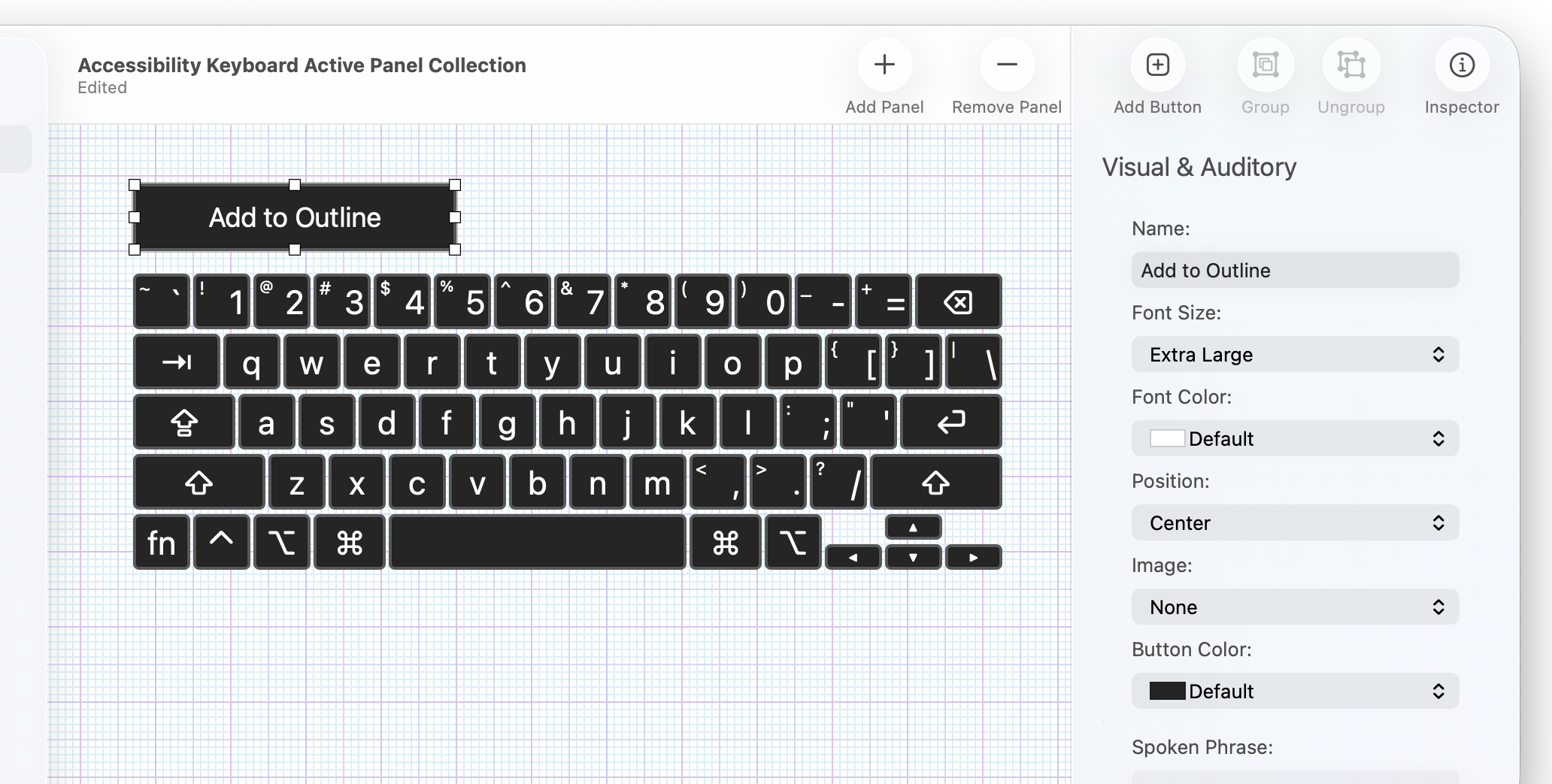
As you arrange items on the grid, don’t worry about keeping the contents centered on the edit grid, or any empty space around the contents. When it’s drawn as an onscreen keyboard, the floating window will snap to the top, bottom, left, and right of the buttons automatically.
Make the button do something
I’ve already got the AppleScript that turns a webpage into a story item in my OmniOutliner outline. I can attach that script to the button by opening the “Action” menu in the Inspector.
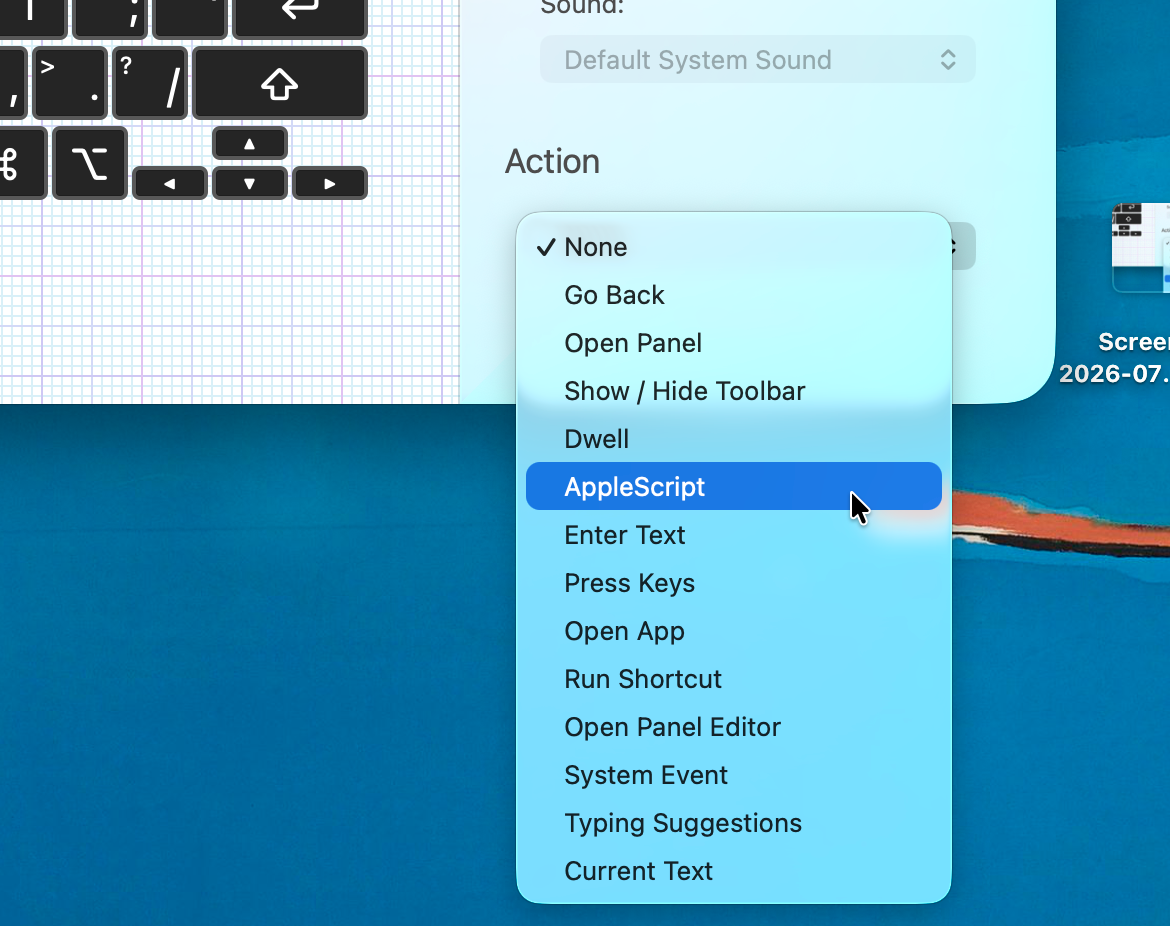
As you can see, there’s a lot of potential here. I select “AppleScript.” A new “Script” menu appears, through which I can select my “Chrome page to OmniOutliner row” script.
Add more buttons or whatever!
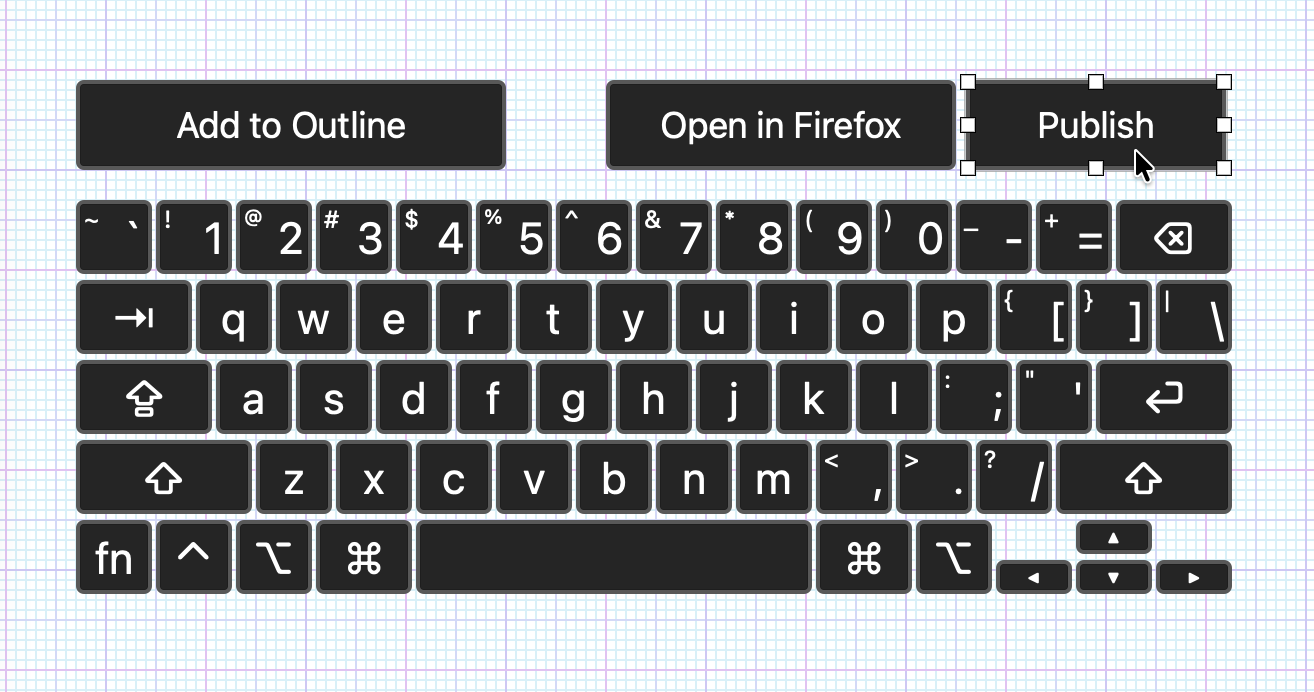
The workspace is an open grid, so you can go nuts. Or go restrained, if so inclined. Either way, Panel Editor is a robust app with lots of goodness.
Once your new panel is to your liking, select Save or close Panel Editor. Your new panel is ready.
Using your new panel
You can activate your new panel through the three-button menu at the upper-right of the Accessibility Keyboard. All of your custom panels will appear under the “Custom Panels…” submenu.
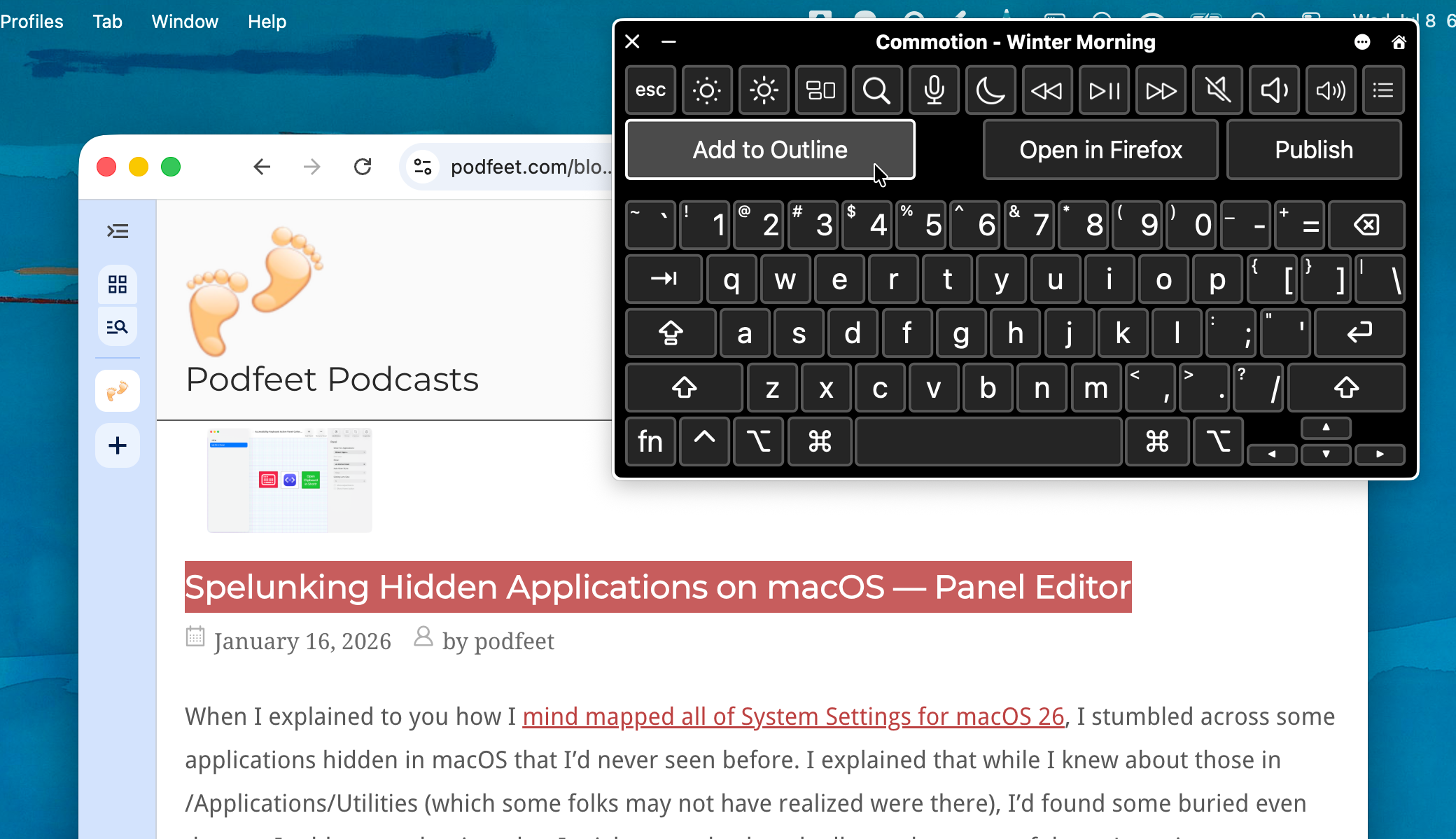
And that’s it: a custom floating automation toolbar using just the stock features of MacOS.
But of course I’ve only explained how to use this feature to do this one thing…and it’s not even the thing it was broadly built to do. So I urge you to read this guide by the inestimable Allison Sheridan, which will explain the feature and the editor in much better detail.
Postscript: Why “Winter Morning”?
I suppose I should explain why I named this variant of my standard Commotion shortcut panel the “Winter Morning” edition.
We had one hell of a nasty winter this year. A normal New England winter redoubles your hatred of shoveling snow (temporarily), but the weather is almost never so severe as to make you rethink your sincerity when saying “Oh, I could never live in [region famous for its mild climate]. I’d miss experiencing the seasons.”
Most winters, the truly punishingly cold weather comes in the form of a two- or three-day blip, two or three times over the course of the season. It's fine. But this year, temperatures dropped to the mid-teens and chose to stay there, raise a family, really put down some roots, maybe run for that empty seat on the school board.
As previously stated, I’m a freelance journalist in a rapidly-collapsing market. I also live in a magnificent edifice that was built during a time when heat-trapping insulation was something that was worn by people, not built into walls and windows. Sure, I'll crank up the thermostat to offset these kinds of freezes for a few days. But beyond that, I just see money flying out through the gaps between my window frames and the walls.
Thus, there were a few weeks when I kept the heat at a level that was healthy for the water pipes, but not entirely toasty for humanity. Every morning, getting out of bed — with its heated mattress cover and additional comforter — was a chore.
They say that some of the most important inventions happen during times of war. This war with 15° weather was no different. I discovered that if I balanced my MacBook on my chest on top of all of the blankets and slipped an extra pillow under my head to prop it up a little more, I could operate my Mac while lying completely underneath the covers via a Bluetooth mouse under my right hand. I couldn’t do any typing. But much of my morning work involves reading lots of research, triaging email, and getting myself up to date.
In my defense, this isn't how I usually execute my morning work session. You may imagine me seated at my desk, shaved, showered, and wearing a crisp linen suit with a silk bowtie knotted just so. I don't know how to tie a bowtie, nor do I own a linen suit. I'm sitting somewhere, dressed in something I hadn't slept in, and if I haven't shaved or showered yet, I'll fully intend to get to it after lunch. And this one-button panel streamlines a weekly task nicely.
But during that series of weeklong cold snaps, using this work setup with only my head and neck out of the covers and moving basically as little as possible…fine, I won't deny that the experience felt like Hedonism in its purest form. Hedonismbot from Futurama would have curtly noted that I had failed to integrate any kind of hands-free snacking into the system, but otherwise, I'm sure he would have approved. Doubly so, now that I've improved the panel so that I don't even need to lift an arm out from under the covers to type.
Thank God for my Catholic upbringing. Yeah, I got the less intense, post-Vatican II experience. Nonetheless, it instilled a high enough baseline level of Guilt in me that, despite this brilliant setup, no matter how cold it was, I'd still force myself to get out of bed by 10 AM. 11 AM at the latest. Unless a new "Project Binky" episode dropped on YouTube, or something nearly as good, in which case…